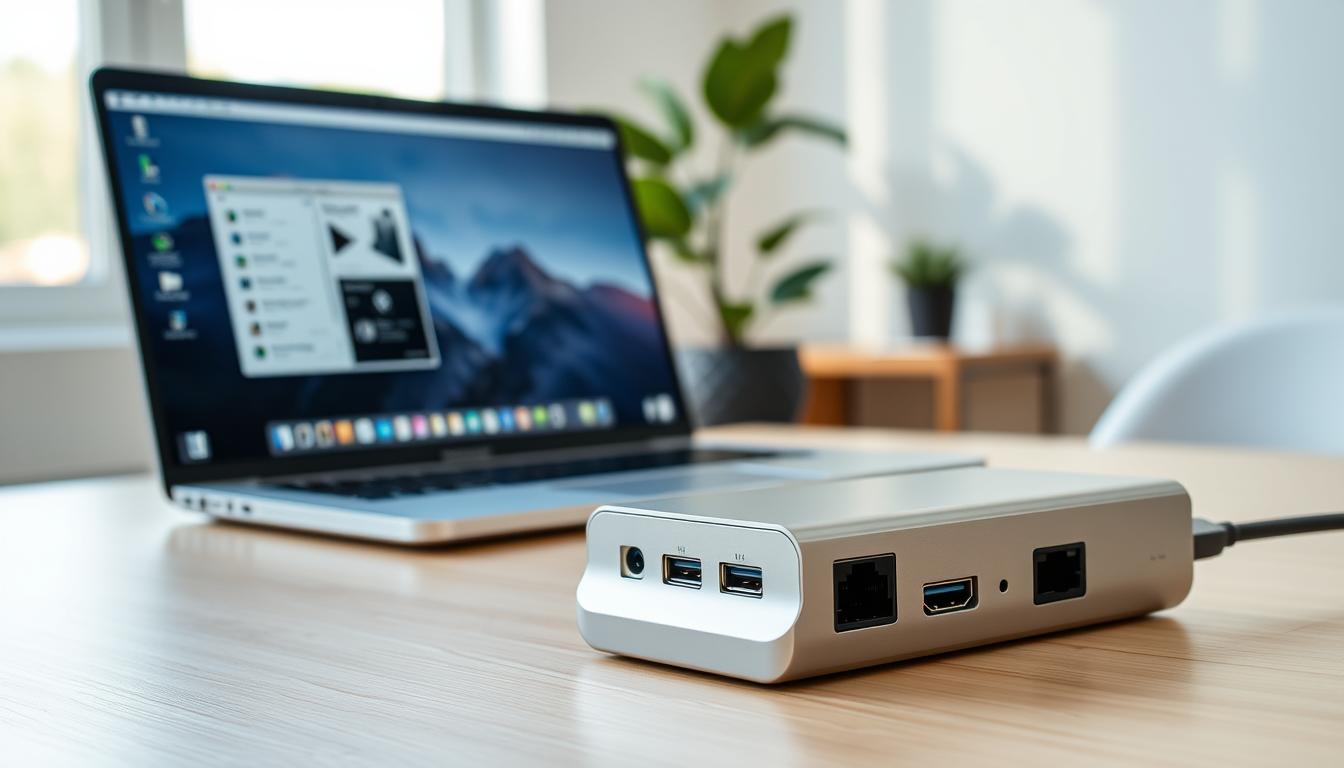
As a technology professional, I’ve seen firsthand how a laptop docking station can transform the home office experience. With the rise of remote work, having a reliable and efficient docking solution is crucial for productivity.
In this comprehensive guide, I’ll walk you through the world of Thunderbolt, USB-C, and universal docking stations, helping you find the perfect solution to boost your productivity. Whether you’re a remote worker or a gamer, I’ll share my expertise to ensure you make an informed decision when choosing a docking station that meets your needs.
Key Takeaways
- Understand the different types of laptop docking stations available
- Learn how to choose the right docking station for your needs
- Discover the benefits of using a Thunderbolt or USB-C docking station
- Find out how a universal docking station can enhance your productivity
- Get tips on selecting a docking station that is compatible with your laptop
Understanding Laptop Docking Stations for Remote Work
As professionals continue to work from home, the importance of laptop docking stations in creating an efficient workspace cannot be overstated. A well-chosen docking station can transform a cluttered workspace into a streamlined, productive environment.
What Is a Docking Station and How Does It Work?
A docking station is a hardware device that allows you to connect your laptop to various peripherals, such as monitors, keyboards, and mice, through a single connection. This simplifies your workspace and makes it easier to switch between working on your laptop and working on a more traditional desktop setup. Thunderbolt docks and USB-C docks are among the most popular types, offering high-speed data transfer and the ability to charge your laptop.
The Evolution of Docking Technology
Docking technology has evolved significantly over the years, from proprietary docks to the current crop of Thunderbolt and USB-C docks. This evolution has brought about faster data transfer rates, improved video output capabilities, and increased compatibility with a wide range of devices. Today, docking stations are more versatile than ever, catering to different needs and enhancing productivity for remote workers.
Benefits of Using a Docking Station in Your Home Office
As I’ve experienced firsthand, integrating a docking station into my home office has revolutionized my workflow. A docking station can significantly enhance your home office setup by providing a range of benefits that improve productivity and simplify your workspace.
Enhanced Productivity with Multiple Monitors
One of the primary advantages of using a docking station is the ability to connect multiple monitors to your laptop, thereby enhancing your productivity. With a multi-monitor setup, you can have multiple applications and documents open simultaneously, reducing the need to constantly switch between windows. This is particularly beneficial for tasks that require multitasking, such as video editing, software development, or data analysis. For instance, I use a multi-monitor laptop setup to keep my email, project management tools, and work documents open at the same time, streamlining my workflow.
Simplified Cable Management
A docking station also simplifies cable management in your home office. By connecting your laptop to the dock, you can access a variety of ports, reducing the clutter of cables connected directly to your laptop. This not only makes your workspace look neater but also makes it easier to disconnect and reconnect your laptop when needed. For example, a home office dock can consolidate multiple cables into a single connection, making it easier to manage your workspace.
Expanded Connectivity Options
Furthermore, docking stations expand your laptop’s connectivity options. Whether you need additional USB ports, Ethernet connectivity, or video outputs, a docking station can provide the necessary connections. This flexibility is particularly useful for professionals who require specific peripherals or need to connect to different types of displays. By expanding your laptop’s capabilities, a docking station can help you work more efficiently and effectively.
Types of Docking Stations Explained
With multiple types of docking stations available, selecting the right one requires a clear understanding of their differences. As technology advances, docking stations have become more sophisticated, catering to various needs and devices.
Thunderbolt Docks: Power and Performance
Thunderbolt docks are designed for high-performance users who require fast data transfer speeds and multiple display outputs. They offer up to 40 Gbps data transfer rates and can support multiple 4K displays or a single 5K display. Thunderbolt docks are ideal for professionals working with demanding applications like video editing and 3D modeling.
USB-C Docks: Versatility and Compatibility
USB-C docks have gained popularity due to their versatility and compatibility with a wide range of devices. They offer a convenient way to expand the connectivity options of laptops and tablets, providing ports such as USB-A, HDMI, and Ethernet. USB-C docks are suitable for most users, from professionals to casual users, as they provide a simple and effective way to enhance device connectivity.
Universal Docks: Legacy Support
Universal docks are designed to be compatible with a broad range of devices, including older models. They often feature a variety of ports, including legacy ports like VGA and DVI, making them suitable for users with older monitors or devices. Universal docks are a practical choice for those who need to connect multiple devices or require backward compatibility.
As highlighted by
“The right docking station can transform your workspace, enhancing productivity and simplifying cable management.”
Understanding the different types of docking stations is crucial in selecting the one that best fits your needs.
Key Features to Consider When Choosing a Docking Station
Choosing the ideal docking station requires careful consideration of various key features. As you navigate the market for a docking solution, understanding these essential factors will help you make an informed decision that meets your specific needs.
Port Selection and Quantity
The number and types of ports on a docking station are crucial. You should consider the peripherals you currently use and any future devices you might need to connect. A good docking station should offer a versatile mix of USB-A, USB-C, HDMI, DisplayPort, and Ethernet ports to accommodate various devices.
Power Delivery Capabilities
If you’re looking for a docking station that can charge your laptop, pay attention to its power delivery capabilities. Some docks can deliver up to 100W of power, which is sufficient for most laptops. Ensure the dock’s power output matches your laptop’s requirements.
Video Output Options
For those who require multiple monitor setups, the video output options are vital. Look for docks that support multiple 4K displays or even a single 5K display. The type of video output (HDMI, DisplayPort, etc.) and the version (e.g., HDMI 2.0) will impact the resolution and refresh rate you can achieve.
Compatibility with Your Device
Before purchasing a docking station, ensure it’s compatible with your laptop. Check if your laptop supports Thunderbolt 3 or USB-C with Alternate Mode (Alt Mode) for video output. Some docks are designed specifically for certain operating systems, so verify compatibility with your device’s OS.
| Feature | Importance | Considerations |
|---|---|---|
| Port Selection | High | USB-A, USB-C, HDMI, DisplayPort, Ethernet |
| Power Delivery | Medium | Power output (Watts), compatibility with your laptop |
| Video Output | High | Type (HDMI, DisplayPort), version (e.g., HDMI 2.0), resolution support |
| Compatibility | High | Operating System, Thunderbolt/USB-C support |
Good Laptops for Working from Home with Docking Stations
The right laptop can make all the difference when working from home, especially when paired with a docking station. As remote work continues to grow, it’s essential to choose a laptop that not only meets your performance needs but also integrates seamlessly with your docking solution.

Dell XPS and Latitude Series
Dell offers a range of excellent laptops for working from home, particularly the XPS and Latitude series. The Dell XPS line is known for its sleek design and powerful performance, making it ideal for demanding tasks. The Latitude series, on the other hand, is renowned for its business-focused features and robust security.
Lenovo ThinkPad Series
Lenovo’s ThinkPad series is a favorite among professionals due to its durability, performance, and extensive compatibility with docking stations. ThinkPads are designed to work seamlessly with various dock configurations, ensuring that you can easily expand your workspace as needed.
MacBook Pro and Air with Thunderbolt
For those invested in the Apple ecosystem, the MacBook Pro and Air models with Thunderbolt ports offer exceptional compatibility with docking stations. These laptops provide the performance and connectivity required for demanding tasks, and their Thunderbolt ports enable high-speed data transfer and display output.
HP EliteBook and Spectre Series
HP’s EliteBook and Spectre series laptops are designed with professionals in mind, offering a blend of performance, security, and style. These laptops are compatible with a range of docking stations, making them versatile choices for home office setups.
| Laptop Model | Docking Station Compatibility | Key Features |
|---|---|---|
| Dell XPS 13 | Thunderbolt 3 Dock | Compact, Powerful, USB-C |
| Lenovo ThinkPad X1 Carbon | USB-C Dock, Thunderbolt 3 | Lightweight, Secure, High Performance |
| MacBook Pro 16 | Thunderbolt 3 Dock | High-Resolution Display, Powerful Processors |
| HP EliteBook 840 | USB-C Dock, HP USB-C Dock | Business-Focused, Secure, Expandable |
Top Thunderbolt Docking Stations for Power Users
For those who demand top-notch performance from their laptops, Thunderbolt docks are a game-changer. As a power user, you’re likely looking for a docking station that can keep up with your demanding workflow. In this section, I’ll review some of the top Thunderbolt docks on the market, comparing their features, pricing, and value to help you make an informed decision.
CalDigit TS4 Thunderbolt 4 Dock
The CalDigit TS4 is a powerhouse of a dock, offering an impressive array of ports and features. With its Thunderbolt 4 technology, it provides speeds of up to 40 Gbps, making it ideal for data-intensive tasks. The TS4 boasts an impressive 18 ports, including USB-A, USB-C, DisplayPort, and Ethernet, ensuring that you can connect all your peripherals with ease.
Dell WD19TB Thunderbolt Dock
The Dell WD19TB Thunderbolt Dock is another top contender in the world of Thunderbolt docking stations. This dock offers a robust set of features, including Thunderbolt 3 connectivity, up to 130W power delivery, and support for up to three 4K displays. Its compact design makes it an excellent choice for those looking for a reliable and powerful dock.
Kensington SD5700T Thunderbolt 4 Dock
The Kensington SD5700T is a cutting-edge Thunderbolt 4 dock designed to meet the needs of power users. With its sleek and compact design, this dock offers dual 4K display support and a range of ports, including USB-A, USB-C, and DisplayPort. Its robust power delivery capabilities make it an excellent choice for charging your laptop and peripherals.
Pricing and Value Comparison
When it comes to choosing the right Thunderbolt dock, pricing is an important consideration. Here’s a comparison of the docks mentioned above:
| Docking Station | Price | Ports | Power Delivery |
|---|---|---|---|
| CalDigit TS4 | $299 | 18 | up to 98W |
| Dell WD19TB | $249 | 14 | up to 130W |
| Kensington SD5700T | $299 | 11 | up to 100W |
As you can see, each dock offers a unique set of features and pricing. By considering your specific needs and budget, you can choose the Thunderbolt dock that best suits your workflow.
Best USB-C Docking Stations for Versatility
The versatility of USB-C docking stations makes them an essential component for any modern home office. As I explore the options available, it’s clear that these docks offer a range of benefits, from expanded connectivity to simplified cable management.
When selecting a USB-C dock, there are several factors to consider, including the number and type of ports, power delivery capabilities, and compatibility with your device. Here are some top contenders that stand out for their versatility:
Anker PowerExpand Elite 13-in-1 Dock
The Anker PowerExpand Elite is a powerhouse, offering 13 ports including USB-C, USB-A, HDMI, and Ethernet. This dock is ideal for users who need to connect multiple devices simultaneously. With its robust design and high-speed data transfer capabilities, it’s a top choice for home office professionals.
Dell D6000 Universal Dock
The Dell D6000 Universal Dock is another versatile option, providing a range of connectivity options and compatibility with various Dell devices. Its ability to support multiple displays and offer power delivery makes it a practical choice for those seeking a reliable home office dock.
Plugable USB-C Triple Display Dock
For users who require multiple display outputs, the Plugable USB-C Triple Display Dock is an excellent choice. This dock supports up to three 4K displays, making it perfect for multitasking and productivity. Its compact design belies its robust capabilities, making it an attractive option for home office setups.
Budget-Friendly Options
Not everyone needs a top-of-the-line dock, and there are several budget-friendly options available that still offer great value. When looking for a more affordable usb-c dock, consider models that prioritize your essential features, such as USB-C with power delivery and a few key ports like HDMI and Ethernet.
In conclusion, the best USB-C docking station for your home office will depend on your specific needs, including the devices you need to connect and the features that are most important to you. By considering the options outlined above, you can find a versatile and reliable dock that enhances your productivity and simplifies your workspace.
Multi-Monitor Setups with Docking Stations
In my experience with enhancing home office setups, multi-monitor configurations via docking stations have been a game-changer. The ability to connect multiple monitors to a laptop not only expands the workspace but also significantly boosts productivity. As I delve into the specifics, it’s clear that understanding the nuances of multi-monitor setups is crucial for maximizing their benefits.
Dual vs. Triple Monitor Configurations
When it comes to multi-monitor setups, the choice between dual and triple monitor configurations depends on specific needs and the type of work being done. Dual monitor setups are ideal for most users, offering a balance between expanded screen real estate and simplicity. On the other hand, triple monitor configurations are perfect for professionals who require extensive screen space, such as video editors, stock traders, and software developers.
Resolution and Refresh Rate Considerations
The resolution and refresh rate of the monitors are critical factors to consider when setting up a multi-monitor system. Higher resolutions like 4K provide sharper images, but they also demand more from the laptop’s graphics processing unit (GPU). Similarly, higher refresh rates offer smoother visuals, which is particularly important for tasks involving motion graphics or video editing. It’s essential to ensure that the docking station and laptop can support the chosen monitors’ resolutions and refresh rates.
Mac vs. Windows Multi-Display Differences
There are notable differences between Mac and Windows systems when it comes to multi-display setups. Mac users often benefit from a more streamlined experience, with macOS offering robust support for multiple displays. Windows users, on the other hand, have a more flexible hardware ecosystem, allowing for a wider range of configurations. However, Windows users may need to manage display settings more manually. Understanding these differences is key to optimizing a multi-monitor setup for the specific operating system being used.
Troubleshooting Common Docking Station Issues
Troubleshooting your docking station is crucial for maintaining a seamless workflow. While docking stations are designed to simplify your work setup, they can sometimes present technical challenges.
Connection and Detection Problems
One common issue is connection and detection problems. If your docking station is not being detected, try restarting both your laptop and the docking station. Ensure that all cables are securely connected and that you’re using the correct ports.
| Issue | Troubleshooting Step |
|---|---|
| Docking station not detected | Restart laptop and docking station |
| Loose connections | Check and secure all cables |
Display Output Challenges
Display output challenges can also occur. If you’re experiencing issues with your monitors, check that they’re properly connected to the docking station and that the correct input is selected on the monitors. You may also need to adjust your display settings on your laptop.
Power Delivery and Charging Issues
Power delivery and charging issues can be frustrating. If your laptop is not charging, ensure that the docking station is receiving power and that you’re using the correct charging cable. You may also want to check the power delivery settings on your laptop.
By following these troubleshooting steps, you can resolve common docking station issues and maintain a productive workflow.
Conclusion: Transforming Your Home Office with the Right Docking Solution
As we wrap up this comprehensive guide, it’s clear that the right docking station can revolutionize your home office setup. By understanding your needs, budget, and device compatibility, you can unlock enhanced productivity and efficiency. Whether you’re using a Dell XPS or a MacBook Pro, a good docking station can elevate your work experience.
When selecting a home office dock, consider the types of ports you need, power delivery capabilities, and video output options. Top brands like CalDigit, Anker, and Plugable offer a range of solutions that cater to different requirements. Pairing a good laptop for working from home with the right dock can significantly improve your workflow.
By investing in the right docking solution, you can create a seamless and efficient home office environment. This not only boosts your productivity but also enhances your overall work experience. With the insights gained from this guide, you’re now equipped to make an informed decision and take your home office to the next level.